Everything Bundle
Everything you need to create stunning digital art in Procreate—in one collection.
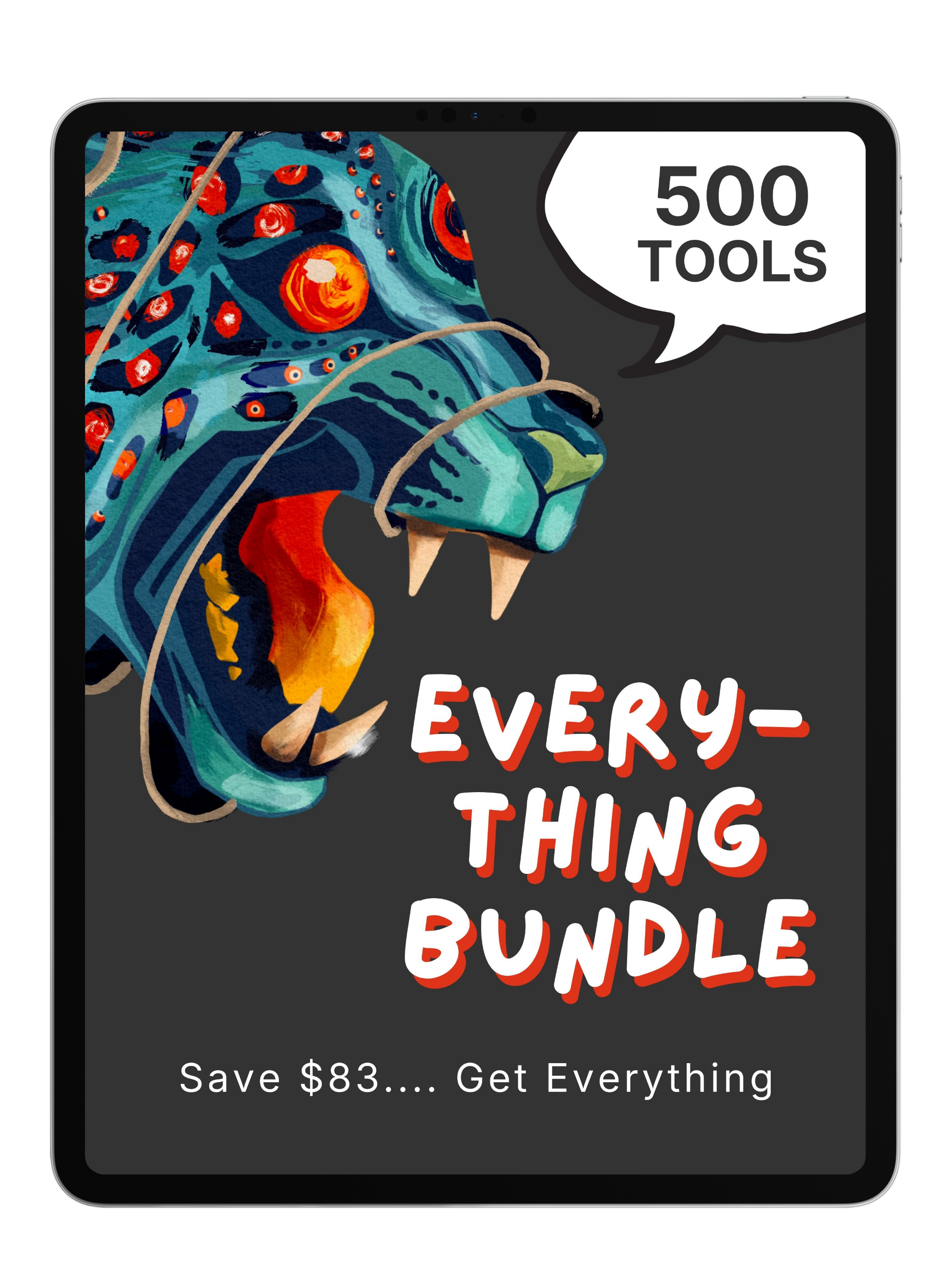
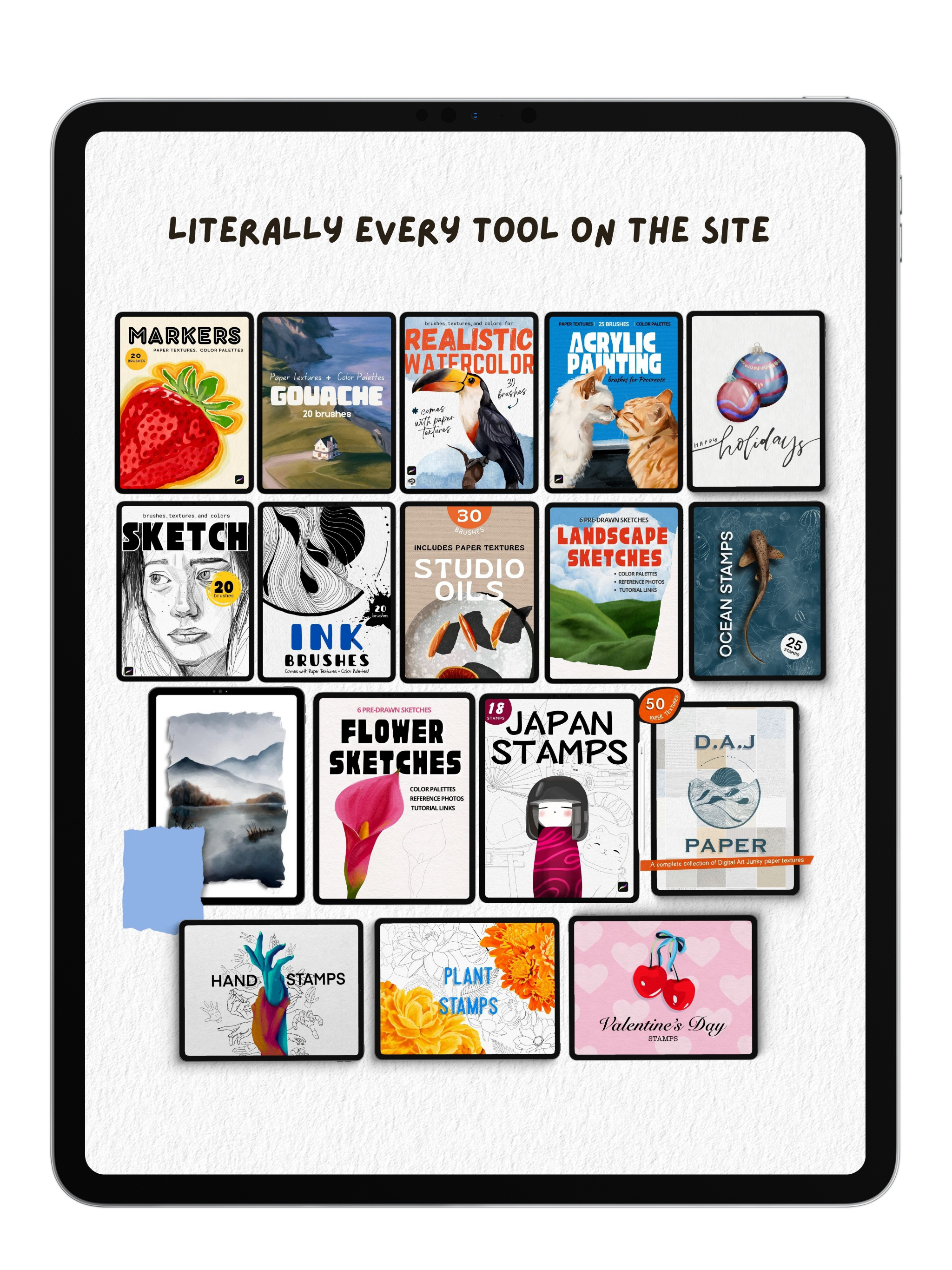
Get 225 premium brushes, 151 stamps, 50 paper textures, 62 color palettes, and 12 practice sketches with tutorials. Every product from the Digital Art Junky shop in one bundle.
500 tools. $183 value. Yours for $100.
Stop buying tools piecemeal and save $83. Whether you're just starting out or leveling up your skills, this is everything you need to create professional-quality digital art.
Pairs well with
Everything Bundle
If you have any questions, you are always welcome to contact us. We'll get back to you as soon as possible, within 48 hours on weekdays.
-
Product Delivery
Once you complete your purchase, you'll receive instant access to your products via email—no waiting required!
-
Customer Support
Need help? Our team is here to assist you and will get back to you within 1-2 business days
-
FAQ’s
Find answers to common questions about accessing products, importing brushes, and more in our FAQs
Product Features and Benefits
What’s Inside?
225 Premium Brushes
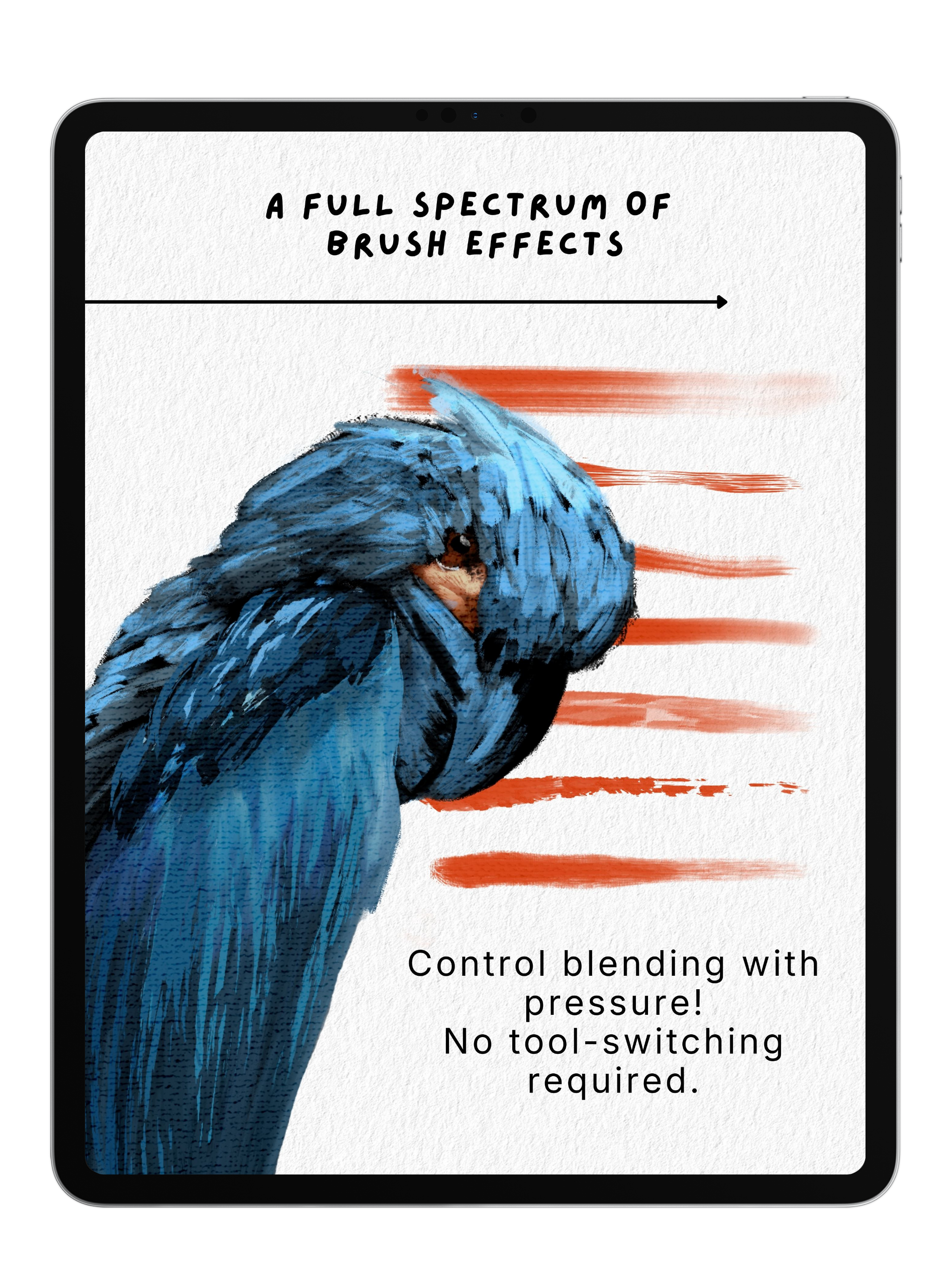
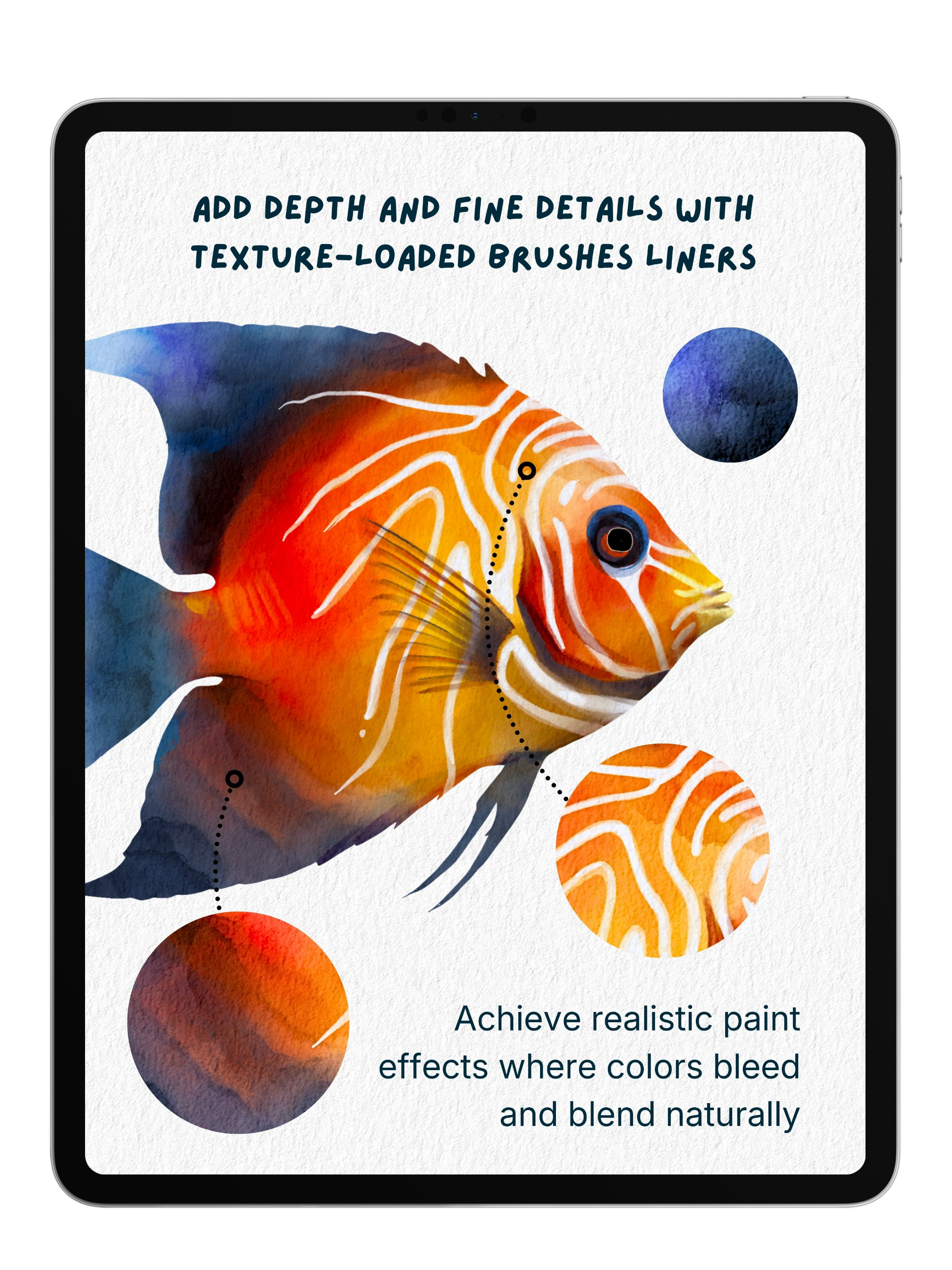
- From hyper-realistic painting brushes to texturing tools, sketching pencils, and specialty effects. Every brush style you need for any project.
151 Stamps
- Instantly add detail and texture to your artwork. Perfect for adding realistic elements without starting from scratch.
50 Paper Textures
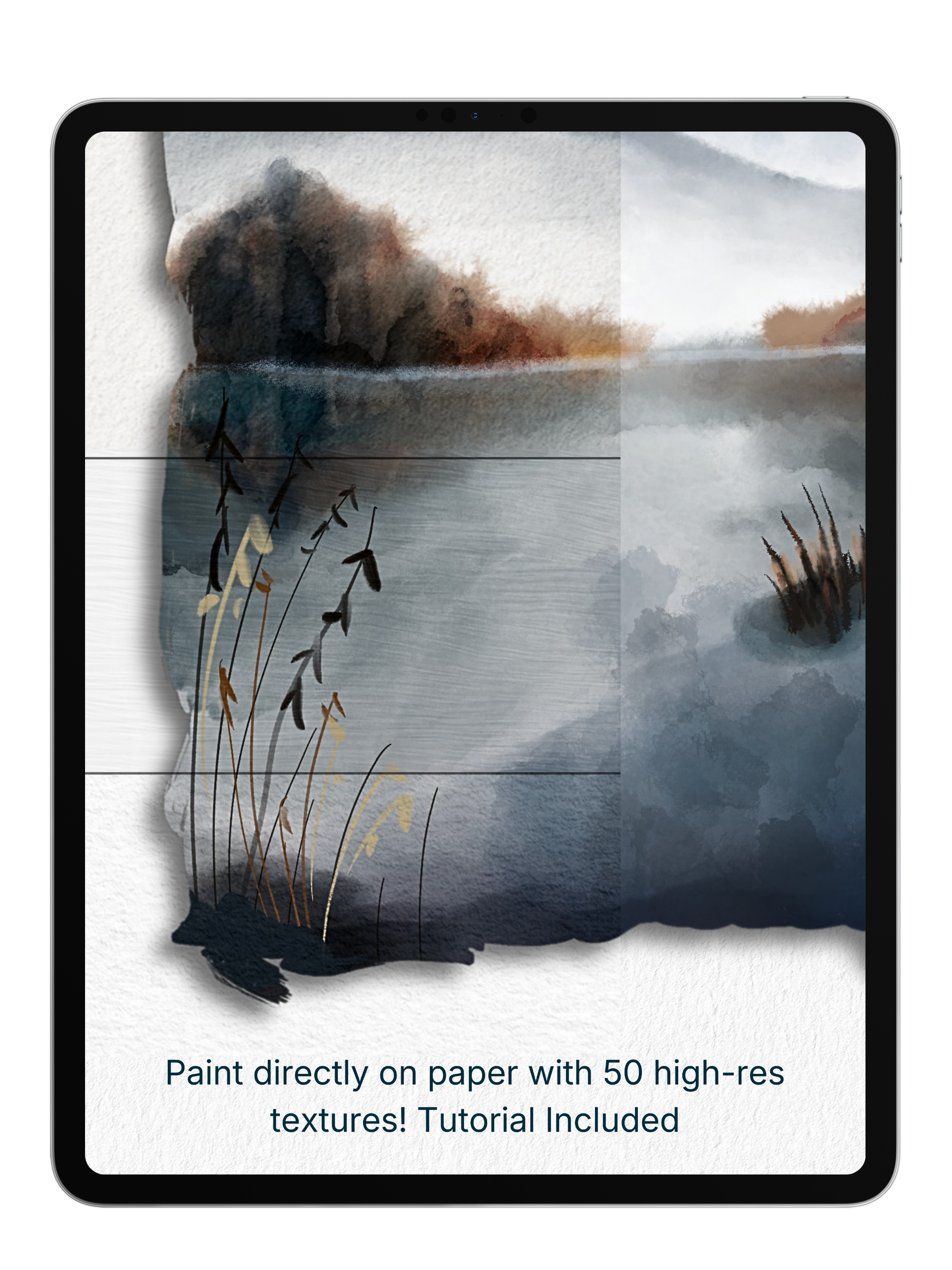
- Create authentic traditional media effects. Apply canvas, watercolor paper, and textured backgrounds to give your digital art a handmade feel.
62 Color Palettes
- Professionally curated color schemes that work. Stop guessing—use palettes designed specifically for digital artists.
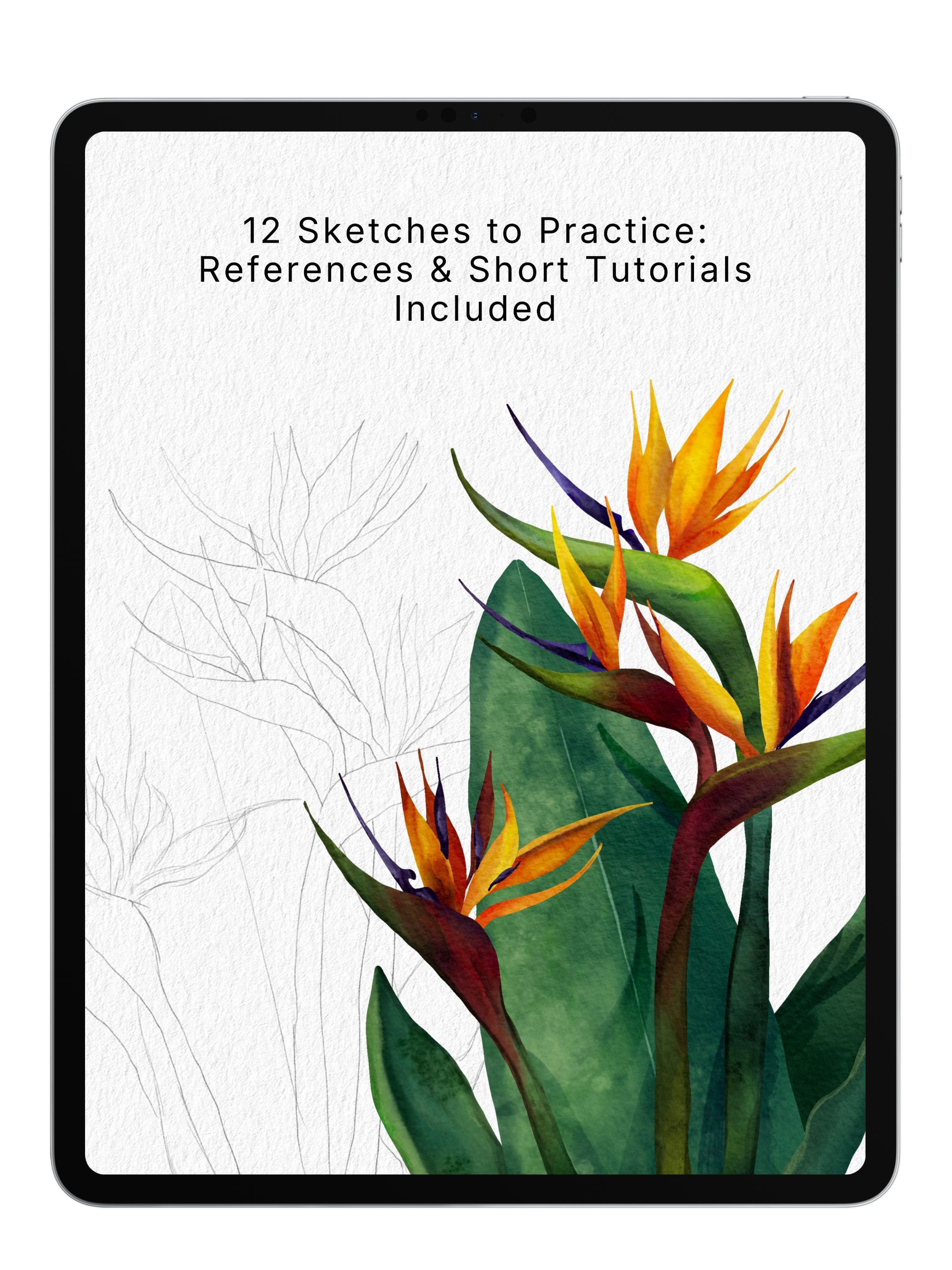
12 Practice Sketches
- Learn by doing. Each sketch includes reference photos and tutorial links to help you master techniques while you create.
Brush Breakdown Videos
- Master each of the brush packs quickly with expert guidance, so you spend less time learning and more time creating (Not included for Acrylic Pack or Texture Brushes)
Why You’ll Love It
- Save $83 and get instant access to every tool in the Digital Art Junky collection.
- No more scrolling through individual products or worrying you're missing something.
- Create confidently knowing you have the complete toolkit—from beginner-friendly brushes to advanced texturing tools.
- Plus, the practice sketches with tutorials help you master techniques while you create.
Commercial License
Brushes (225 included): Full Commercial License Use these brushes in your artwork for personal or commercial projects. Sell your creations freely—no attribution needed.
Stamps, Paper Textures, Color Palettes & Sketches: Personal Use Only These tools are for personal projects and practice. They cannot be used in artwork for commercial purposes or client work.
What You Cannot Do (All Tools): Resell, redistribute, or share the actual tool files themselves.
Questions about licensing? Email anna@digitalartjunky.com or review our full Terms of Service.
Paper Textures Included! See the Difference!

Without

With Texture
FAQs
Please read our FAQs page to find out more.
How do I import my Procreate brushes and color palettes?
- After placing an order with Digital Art Junky, you will receive an email containing a download link to your files.
- Open the email and download the file onto your computer or iPad. The digital file will arrive in a .zip format.
- If you're using an iPad, decompress the .zip folder by tapping it once.
- If you're using a laptop, decompress the .zip folder by double-clicking or right-clicking the file and select "decompress".
- Then, using your iPad- open the file and tap your Procreate brush or color pallete file once. this will import it directly into procreate.
How do i download my Clip Studio Paint Brushes?
- After placing an order with Digital Art Junky, you will receive an email containing a download link to your files.
- Open the email and download the file onto your computer or iPad. The digital file will arrive in a .zip format.
- If using an iPad, decompress the .zip folder by tapping it once .
- If using a computer, decompress the .zip folder by double-clicking or right click the file and select "decompress".
- Open Clip Studio Paint on your computer or tablet. Make sure that you have the latest version of Clip Studio Paint installed, as older versions may not support importing brushes.
- In Clip Studio Paint, go to the "Tool" palette located on the left-hand side of the screen. If you don't see the "Tool" palette, you can open it from the "Window" menu in the top menu bar.
- Open a brush folder of your choice by clicking on one of the brush icons in the Tool menu- then open the full list of Sub Tools
- Locate the downloaded brush file on your computer or tablet.
- Drag and drop the brush file from your computer or tablet into the brush folder you have opened.
How do I import my paper textures?
- After downloading the paper texture file to your iPad or iCloud/Files app, open Procreate.
- Go to the Actions menu (wrench icon) and select "Insert a file."
- Find the texture file you downloaded and tap on it to import it into your canvas.
To use the texture:
- Make sure the texture layer is at the top of your Layers panel, then adjust it to cover the entire canvas. Finally, tap the "N" beside the layer to open the layer settings and select "Linear Burn" to apply the texture.
How quickly will I recieve my order?
Once your order is confirmed on the website, you will instantly receive an email with your download link.
If after 5 minutes you don't see the email in your inbox or your junk folder, contact us!